2.3 AprilTag Recognition
0. Introduction to [Tag Recognition]
The [Tag Recognition] model allows users to select and train specific tags, creating a customized tag recognition model.
A tag is a visual marker used to detect and track specific objects or locations. Unlike QR codes, tags are optimized for computer vision, making them less affected by angles or lighting conditions. Tags come in various forms, each with a unique pattern or ID, which the HUENIT AI Camera can recognize and use to trigger specific actions.

The HUENIT AI Camera supports AprilTag, a specific type of tag format. AprilTags are categorized into different groups, collectively known as the AprilTag Family. However, not all AprilTags are supported. HUENIT OS is compatible with the following AprilTags:
Tag36h11
Tag36h10
Tag25h9
Tag16h5
Most examples use Tag36h11 as the reference tag type.
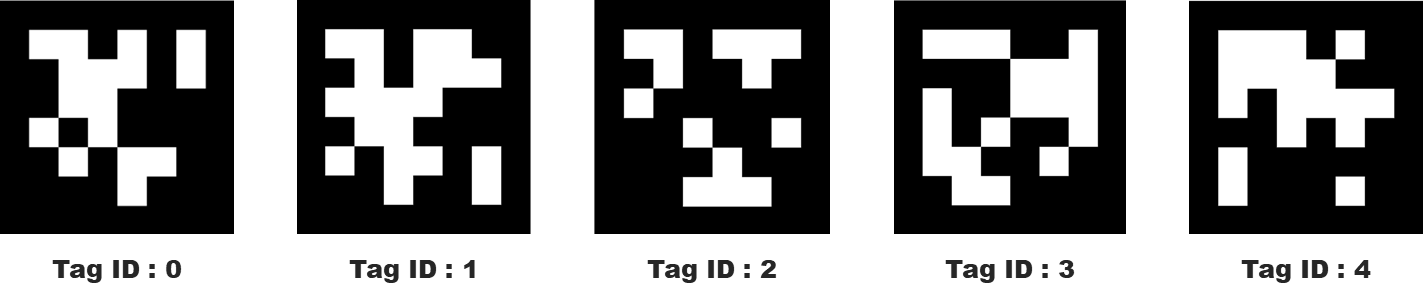


Additionally, regardless of the unique ID of each tag, you can train a total of 10 tags from ID 1 to 10 and assign new learning IDs.
1. How to Train the [AprilTag Recognition] Model
When launching [AprilTag Recognition] for the first time, an empty screen may appear if no tags are detected.

When a detectable tag is placed in front of the camera, a white square and a light green crosshair will appear.

If a white square appears around the tag to be trained, tap the touchscreen to begin training.
Once training is complete, a pop-up will ask: "Would you like to continue training?"
Select "Yes" to train additional tag data.
Select "No" to finish the training session.
The [Tag Recognition] model supports up to 10 unique tag IDs.
The same tag can be assigned multiple IDs, so careful ID management is required.

When adding new tag data, previously trained tags will be displayed with their assigned ID and corresponding color.

2. Completing Model Training
To finalize the [AprilTag Recognition] model training, press and hold the button on the AI Camera for 2 seconds.
⚠ Important: If the button is not held down long enough, the system will return to the AI Model Selection screen, requiring the model to be retrained from the beginning.

When the [End Training] pop-up appears, press the button to confirm and finalize training.

✅ After completing training:
You can now test your custom [AprilTag Recognition] model.
Verify whether the model recognizes the trained tags correctly, ensures the correct tag data is detected, and maintains the correct training order.

3. How to Save a Trained Model
Once the model has been successfully trained and verified, it can be saved in HUENIT OS. This allows the model to be used later in HUENIT LAB (Software).
Press and hold the button on the AI Camera after training is complete.

Click [Save Model] to store the trained model in HUENIT OS.
If the training results are unsatisfactory, click [Delete & Retrain] to restart the training process.

In [Select Save Location], choose a storage slot except for the 6th option (Not Saveable).
"Empty Space" indicates an available slot with no saved model.
Slots with existing names already contain trained AI models.
⚠ Warning: Saving a new model in an occupied slot will overwrite and delete the existing model.

Last updated