# 2.6 QR Code Recognition
## **0. Introduction to \[QR Recognition]**
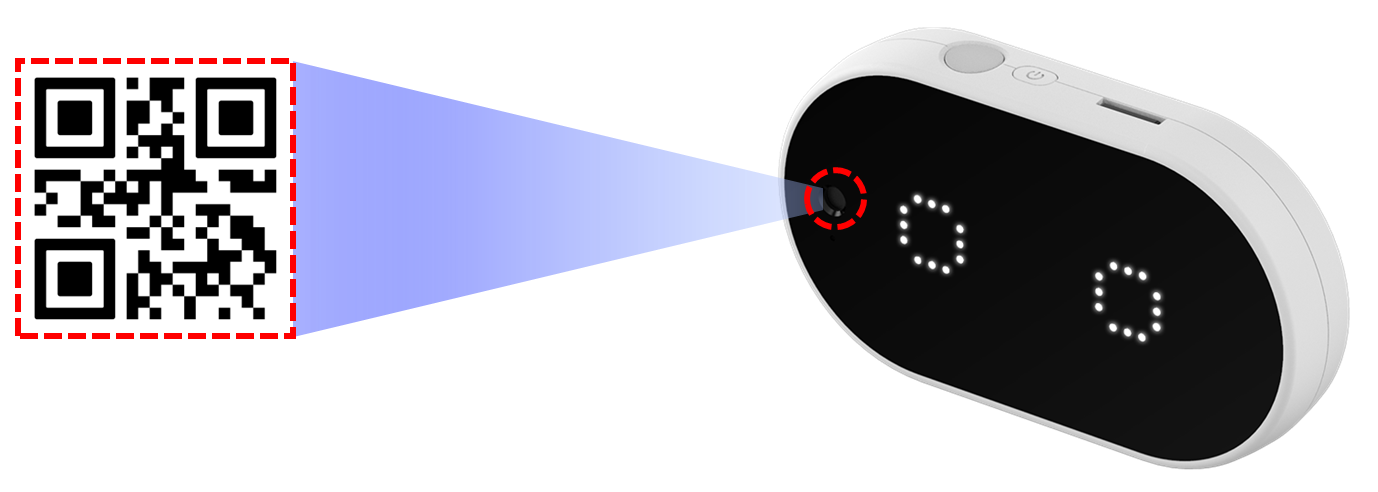
The **\[QR Code Recognition]** model allows users to train specific QR codes and create a customized QR code recognition model.
The recognition principles of **\[QR Code Recognition]** and **\[Tag Recognition]** are similar, as both use **visual markers** to identify specific information.
* **QR codes** are primarily used for **information storage and retrieval**, whereas **tags** are mainly used for **object recognition**.
* As the amount of stored data in a **QR code increases**, its **visual complexity** also increases, making it more difficult for the **HUENIT AI Camera** to recognize compared to tags.
[QR 인식] 모델
## 1. **How to Train the \[QR Recognition] Model**
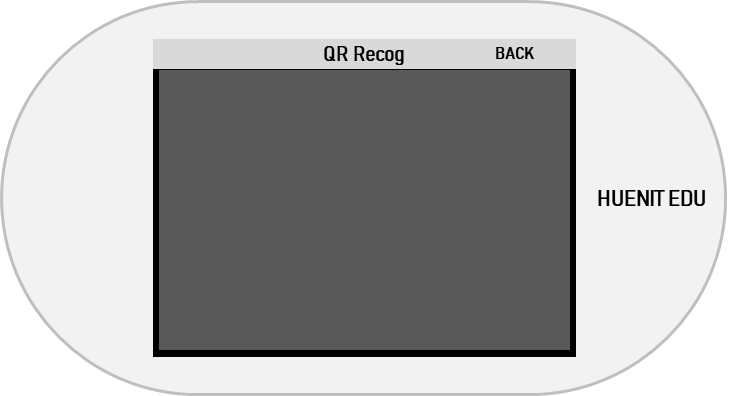
* When launching **\[QR Recognition]** for the first time, an **empty screen** may appear if no QR code is detected.
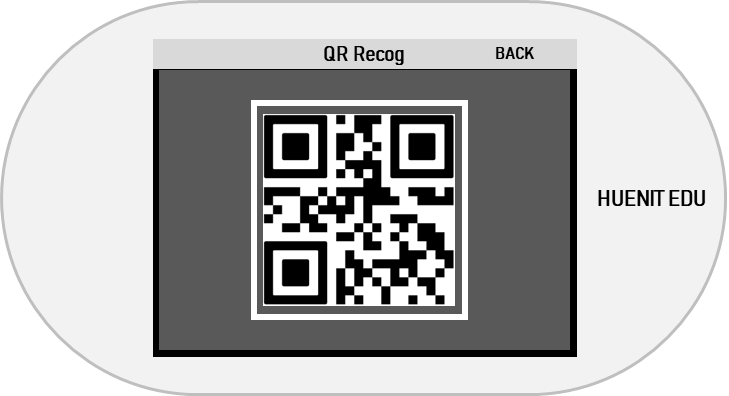
* When a **detectable QR code** is placed in front of the camera, a **white square** will appear around it.
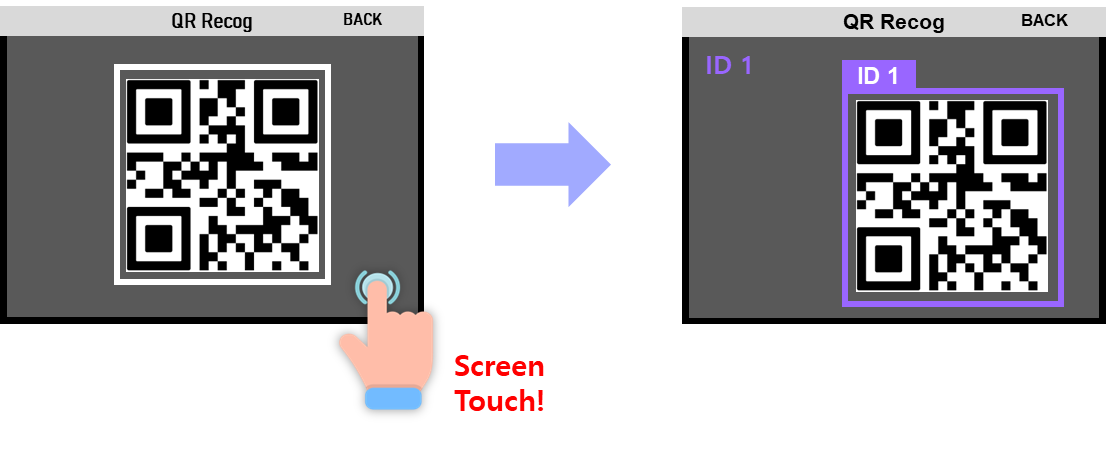
* If a **white square** appears around the QR code to be trained, **tap the touchscreen** to begin training.
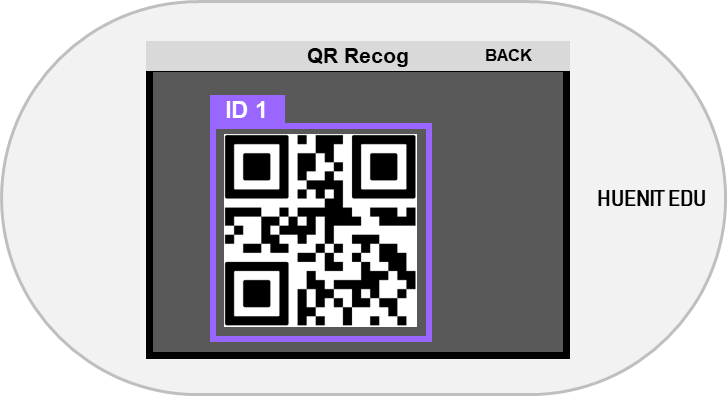
* Once training is complete, scan the same QR code again to verify that the **assigned ID** appears on the screen.
{% hint style="info" %}
* The **\[QR Recognition]** model supports up to **10 unique QR code IDs**.
* **The same QR code can be assigned multiple IDs**, so careful ID management is required.
{% endhint %}
## 2. Completing Model Training
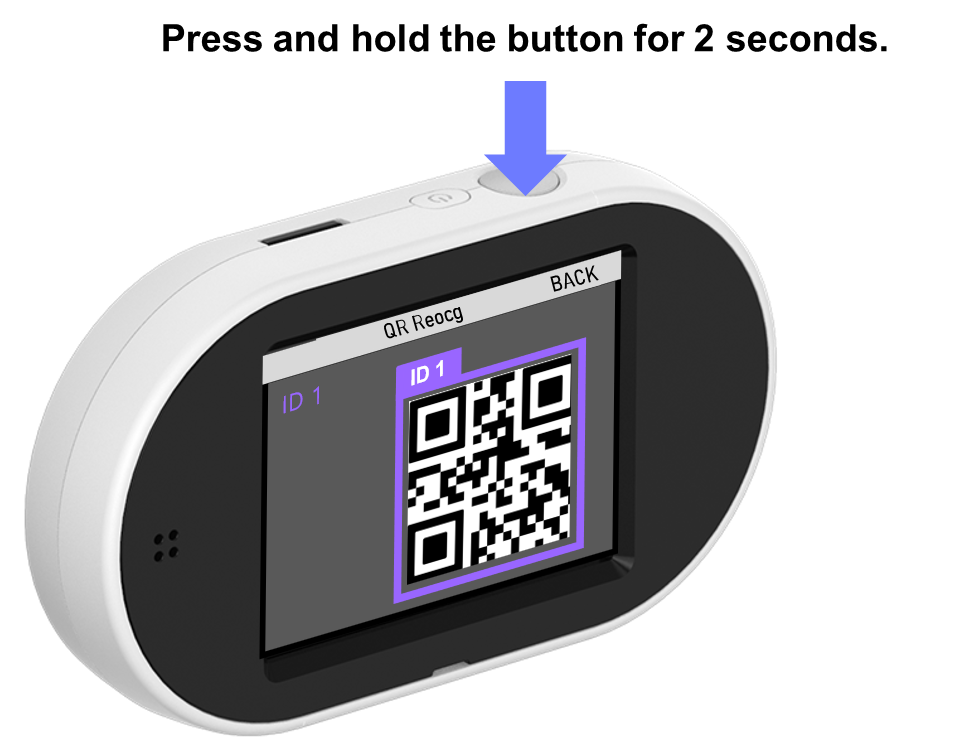
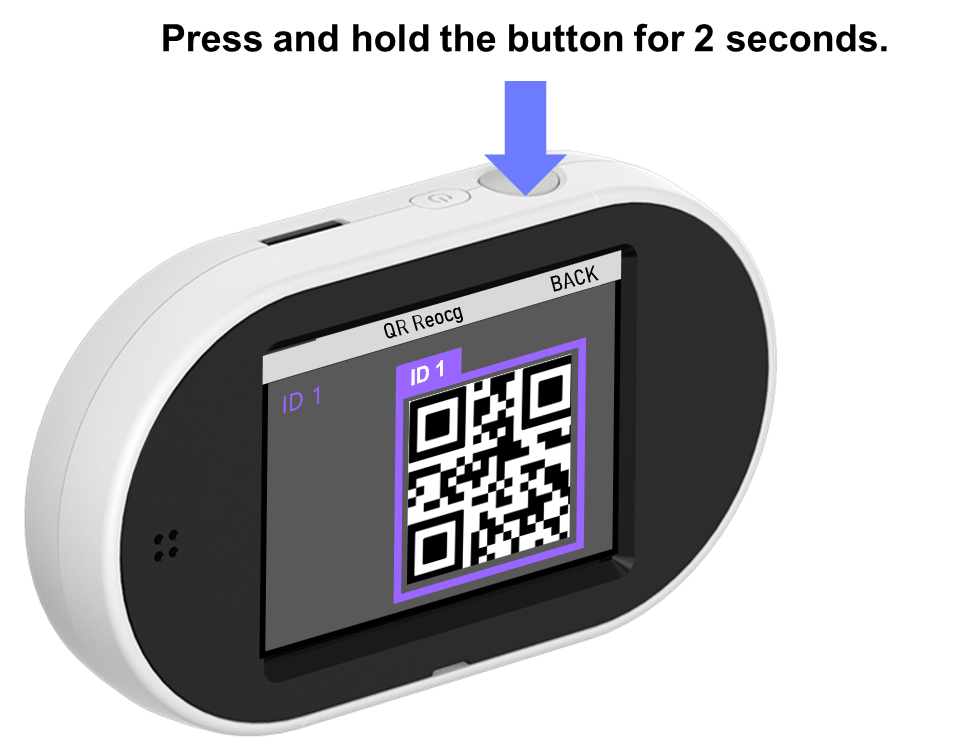
* To finalize the **\[QR Recognition]** model training, **press and hold** the button on the **AI Camera for 2 seconds**.
{% hint style="info" %}
If the button is not held down long enough, the system will return to the **AI Model Selection** screen, requiring the model to be retrained from the beginning.
{% endhint %}
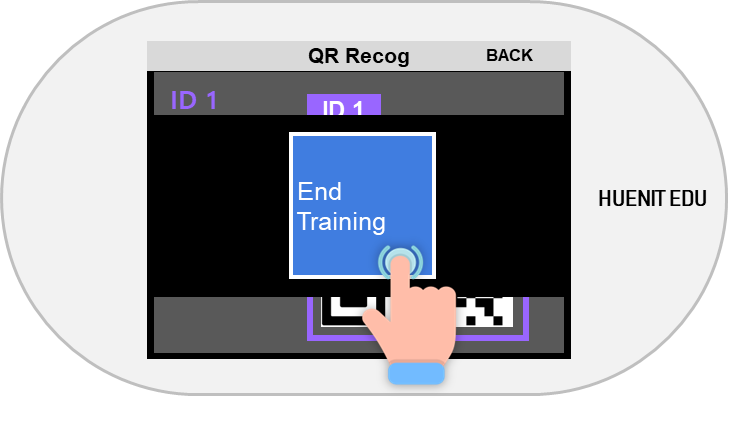
* When the **\[End Training]** pop-up appears, press the button to confirm and finalize training.
✅ **After completing training:**
* You can now test your custom **\[QR Code Recognition]** model.
* Verify whether the system correctly recognizes the trained QR codes, ensures the correct QR code data is detected, and maintains the correct training order.
## **3. How to Save a Trained Model**
Once the model has been successfully trained and verified, it can be saved in **HUENIT OS**. This allows the model to be used later in **HUENIT LAB (Software).**
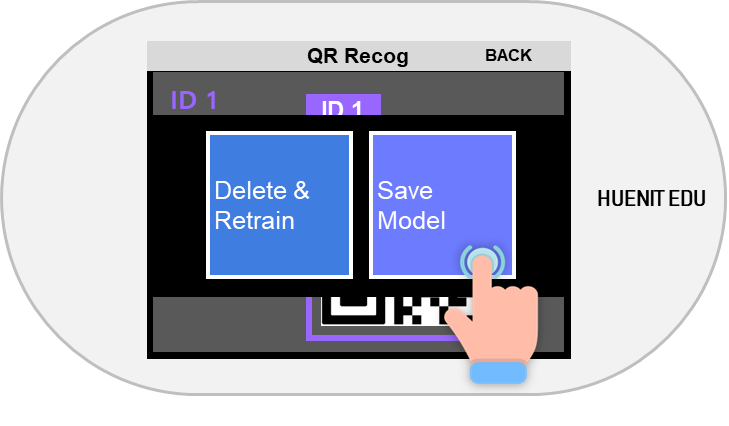
* **Press and hold** the button on the **AI Camera** after training is complete.
* Click **\[Save Model]** to store the trained model in HUENIT OS.
* If the training results are unsatisfactory, click **\[Delete & Retrain]** to restart the training process.
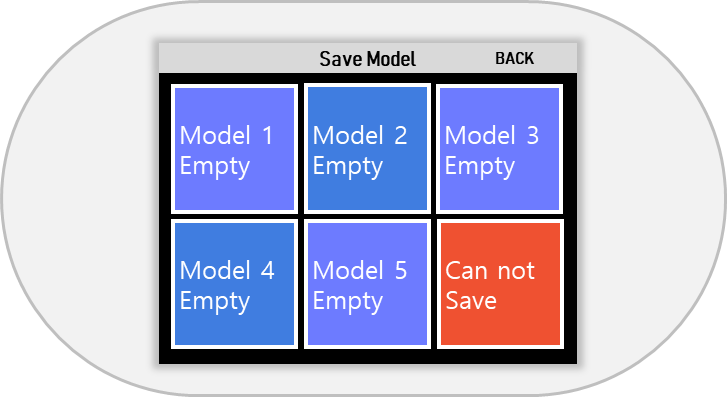
In **\[Save Model]**, choose a storage slot **except for the 6th option (Not Saveable).**
* **"Empty Space"** indicates an available slot with no saved model.
* **Slots with existing names** already contain trained AI models.
* **⚠ Warning:** Saving a new model in an occupied slot will **overwrite and delete** the existing model.