# (Example 2-1) Controlling LED in Custom Shapes - Basic

{% hint style="info" %}
![](https://1881188396-files.gitbook.io/~/files/v0/b/gitbook-x-prod.appspot.com/o/spaces%2FauX5vWu2xzL5b4Cvif21%2Fuploads%2Feet8FLY1v7Mj9WBMayhT%2Fimage.png?alt=media\&token=33b033bf-57f5-495a-ba61-c7b68345cb22)\
With the blocks shown above, you can **easily control** the **LEDs at specific positions**.
{% endhint %}

#### **Example Code**

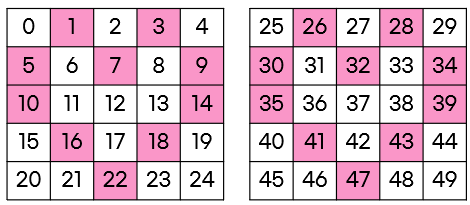
(Example) **Turn on LEDs in a Heart Shape** with **R: 250, G: 150, B: 150**

<figure><img src="https://content.gitbook.com/content/auX5vWu2xzL5b4Cvif21/blobs/6fMDpD98jTnfTRYuChC6/image.png" alt=""><figcaption><p><strong>Heart-shaped LED Number</strong></p></figcaption></figure>

<figure><img src="https://1881188396-files.gitbook.io/~/files/v0/b/gitbook-x-prod.appspot.com/o/spaces%2FauX5vWu2xzL5b4Cvif21%2Fuploads%2FCfWJMq6Bda74XTWOvSju%2Fimage.png?alt=media&#x26;token=142d7fed-a18e-4176-ac23-a6579db825ba" alt=""><figcaption></figcaption></figure>

***

### :bell: **Block Explanation**

**1. \[Set to LED ( ) Shape] Block**

* This block **assigns colors** to specific **LED positions**.

<figure><img src="https://1881188396-files.gitbook.io/~/files/v0/b/gitbook-x-prod.appspot.com/o/spaces%2FauX5vWu2xzL5b4Cvif21%2Fuploads%2FZiphPDat740lTYDVrlCp%2Fimage.png?alt=media&#x26;token=8de952fe-8e04-4b94-b5a7-4e48fc3642f7" alt=""><figcaption></figcaption></figure>

#### **💡 How to Use the Block**

✅ **(1) Modifying the LED Layout**

* Click on the **black squares** to adjust the LED pattern.
* **Three options are available:**
  * **\[COLOR]** → Set a color for specific LEDs.
  * **\[ERASE]** → Remove colors from selected LEDs.
  * **\[CLEAR]** → Reset all LEDs.

<figure><img src="https://1881188396-files.gitbook.io/~/files/v0/b/gitbook-x-prod.appspot.com/o/spaces%2FauX5vWu2xzL5b4Cvif21%2Fuploads%2F0cqWVQX21oZRCvsNhnkr%2Fimage.png?alt=media&#x26;token=f9b63f5a-cc4a-4888-8765-28aa4f2a4785" alt=""><figcaption></figcaption></figure>

✅ **(2) Selecting a Color**\
Click the **\[COLOR]** button to choose a color.

<figure><img src="https://1881188396-files.gitbook.io/~/files/v0/b/gitbook-x-prod.appspot.com/o/spaces%2FauX5vWu2xzL5b4Cvif21%2Fuploads%2FFbPbLtwh0QUUMnugXX72%2Fimage.png?alt=media&#x26;token=c35ec709-e604-4e68-bfc0-7ebc636a8d64" alt="" width="375"><figcaption></figcaption></figure>

{% hint style="success" %}
There are **three ways** to define colors:<br>

1️⃣ **Using Sliders:**

* Adjust the **R, G, B sliders** to set the desired color.

![](https://1881188396-files.gitbook.io/~/files/v0/b/gitbook-x-prod.appspot.com/o/spaces%2FauX5vWu2xzL5b4Cvif21%2Fuploads%2FRnSRNWAXgYUPHu5yEdu4%2Fimage.png?alt=media\&token=8dce9bbc-2a2b-42b6-89a9-9a84b5285846)

2️⃣ **Directly Entering R, G, B Values:**

* Input numerical **R, G, B values (0-255)** for precise color selection.

![](https://1881188396-files.gitbook.io/~/files/v0/b/gitbook-x-prod.appspot.com/o/spaces%2FauX5vWu2xzL5b4Cvif21%2Fuploads%2FxcVwmpu2NmlI1a0vK3hp%2Fimage.png?alt=media\&token=8bbfa77e-d105-4e22-9f71-6cf6dada7077)

3️⃣ **Using Predefined Colors:**

* Click one of the **five preset colors** below to apply it instantly.
* Predefined colors can be **modified using sliders or manual R, G, B inputs**.

![](https://1881188396-files.gitbook.io/~/files/v0/b/gitbook-x-prod.appspot.com/o/spaces%2FauX5vWu2xzL5b4Cvif21%2Fuploads%2FG0RuVBNJpBOtC23pQPSW%2Fimage.png?alt=media\&token=e3c3da02-ec87-49df-82ad-003d2ac8a418)
{% endhint %}

**(3) Assigning the Color to LEDs**

* Once the color is set, **click the desired LED positions** to apply the color.
<figure><img src="https://1881188396-files.gitbook.io/~/files/v0/b/gitbook-x-prod.appspot.com/o/spaces%2FauX5vWu2xzL5b4Cvif21%2Fuploads%2F1ZlI8b3UOysDDZR3RQhu%2Fimage.png?alt=media&#x26;token=2ff3a9e1-1c9a-4aa7-995f-b7f428c6c081" alt="" width="348"><figcaption></figcaption></figure>
